How to Save an Email as PDF in Gmail (Fast & Secure Methods)

Blog Overview – In your Gmail inbox there are some vital and important files that you don’t want to be lost among other emails. You decide I will convert this email into PDF,” and save it offline. Suddenly, you are clicking around, saving individual emails as PDF, renaming files, and repeating the same steps again and again. In this guide, we will show you the exact steps on how to save an email as PDF in Gmail. We will brief you with exact steps to do it right, and show you a calmer, faster way when the volume grows.
How to Save an Email as PDF in Gmail (Manual Method)
Steps to Save a Single Gmail Email as PDF
Detailed Steps explained simply:
- Sign in to your Gmail account.
- Open an email that you want to convert it to PDF.
- Click on the small print icon at top right.
- Select destination to save as PDF.
- Click Save.
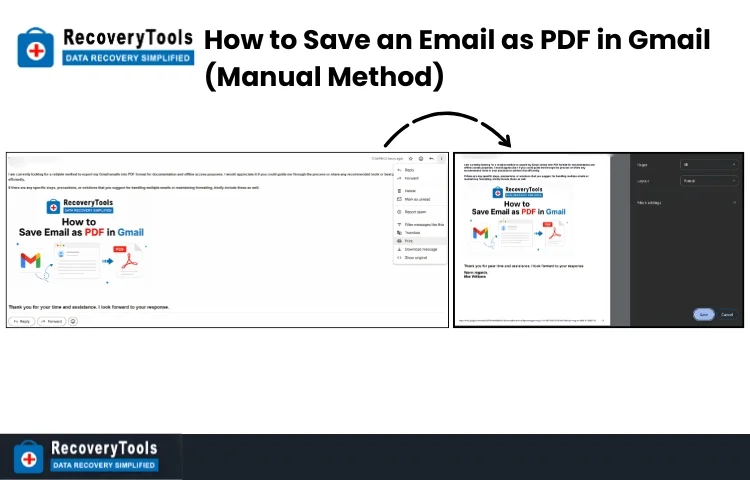
This is the method is for single email, not to bulk export Gmail emails to PDF.
Why Manual Method Breaks for Multiple Emails
When you try to export multiple Gmail emails to PDF. Things can become slowed for you.
- No option in Gmail to select and export in bulk.
- You repeat these 5 steps over and over, again and again.
- Files become unorganized, and due to human error in large data sets, some files can be skipped.
For more clarity it can be seen like copying files one by one from a USB drive rather than selecting everything at once. It works, but it drains your time.
Risks and Mistakes Users Ignore
Manual saving feels safe, and is well-suited for 5 or 10 mails, but it has blind spots.
- Users have to download attachments separately.
- Email threads can lose structure.
- Important elements like timestamps and metadata can be missed.
Note – For people in profession that demands compliance or audits. A small missing detail can create some problems.
There are some mistakes people make in the process of how to save an email as PDF in Gmail.
- Instead of PDF people take screenshots of emails.
- Ignore attachments completely.
- Not naming the file properly of what that email is about.
- Forgetting to organize by date or sender.
These small, unorganized habits create chaos for users.
Efficient Way to Export Gmail Emails to PDF (Professional Method)
This is the point where repeating manual steps doesn’t make sense. Instead of handling and saving emails one at a time, structured approach lets you:
- Select your time range.
- Save your emails in a consistent format i.e PDF, MBOX it lets you export email from Gmail to PST, etc.
- Maintains original formatting.
- Allow filtering by date and many other filter options.
- Keep everything from folder structure to attachments intact and organized.
The professional approach in the form of Gmail Backup Tool makes your “saving emails” journey more like building a clean, searchable archive. We can think of it like an upgrade from loose papers to a labeled filing cabinet. Same documents but a completely different experience.
How to Save an Email as PDF in Gmail (Tool-Based Approach)
- Download, install, and run this dedicated software on your computer (Windows or Mac).
- Click on Gmail as source, PDF as destination platform and Email as workload selection.
- Optional: Apply a Date Filter to back up data from a specific date range.

- Click Sign in with Gmail to begin the authentication process.

- If your 2-Step Verification is enabled, you will be prompted to verify your identity.

- In destination, select folder where you want to save your files.

- Fetch Workload Folders to load all folders from your Gmail account and complete the fetch-up procedure.

- Click Start Backup to begin the process.

Where Manual Methods Fail
When a user plans to export Gmail emails to PDF the method they should select are:
- 2 – 5 emails – Manual method is fine.
- 20 – 50 emails – The repetitive process gets tiring.
- 100+ emails – Manual method is not practical anymore.
If we talk about how to download emails from Gmail in bulk and handle that large dataset with manual method, these issues pop up:
- Time increases with every email.
- Accuracy levels drop.
- Files become extremely hard to manage.
When Dedicated Method Becomes Necessary
If you are a user whose professional life revolves around Email communication that involves important documents that can be needed anytime further. Keeping the record of important data offline regularly is needed. Solution this is Delta Backup, which professional tools offer a feature that only backs up those files that are new after the previous backup. Using a dedicated tool to export multiple Gmail emails to PDF is important for anyone:
- Managing business emails.
- Preparing records for audits.
- Backing up years of communication.
Wrapping Up
If you are a user who only needs to save 10 or 20 emails, manual method works fine for you. If your Goal is to:
- Export multiple Gmail emails to PDF
- Bulk export Gmail emails to PDF
- Keep records safe and organized
Then, a structured approach can be considered as a better long-term choice on how to save emails as PDF in Gmail.
Frequently Asked Questions
Q – Can one save multiple emails as PDF directly in Gmail ?
A – Gmail do not support bulk export. One need to save each email manually one by one.
Q – Saving an email as PDF includes attachments ?
A – Attachments are not embedded automatically. One has to download them separately. If one follow tool based approach, attachments get downloaded in an embedded way.
Q – What is the fastest way to export multiple Gmail emails to PDF?
A – Dedicated approach using a professional tool is the fastest way to export multiple Gmail emails to PDF.