How to Retrieve Emails from Outlook Archive Folder Securely?

In this detailed tutorial, you’ll learn how to retrieve emails from Outlook archive folder. We will share both manual and automated solutions to help you recover archived emails even after deletion. Along with that, we will also shed light on what archiving actually means in MS Outlook. So, without further delay, let us dive right into the article and pick out the perfect solution for you.
Outlook is the most popular email service you can find on the Internet. Most people use Outlook on a daily basis. No matter which service you use, there is a common feature called archiving. If you have accidentally used this feature and want to retrieve emails from Outlook archive folder, you can follow this tutorial.
What Does Archiving Mean in Outlook?
In Outlook, Archiving is a feature that moves your rmail messages from the main mailbox folder to a separate storage location. This feature helps users keep their inbox clean and improve the performance of the email client. Archiving emails doesn’t mean they are deleted, it means they are simply relocated.
However, if you accidentally archived an email and want to retrieve it from the archive folder. You can do it fortunately, you don’t need to download software, choose a service, or install a browser extension. Microsoft Outlook allows users to retrieve emails from the archive folder.
How to Manually Retrieve Emails from Outlook Archive?
Outlook has a specific folder for archived emails, that is, you need to go to the folder, select the email, and send it back to your inbox folder.
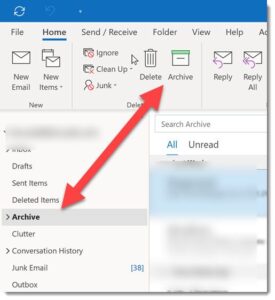
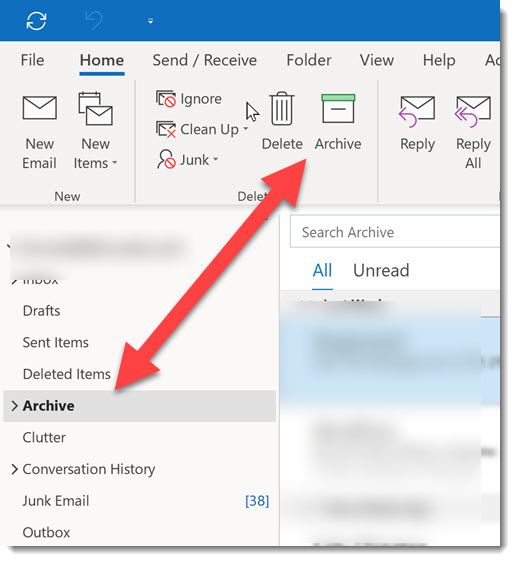
- Step-1: To get started, open Outlook. You should now see an Archive option on the left.
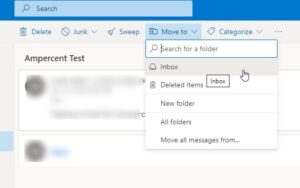
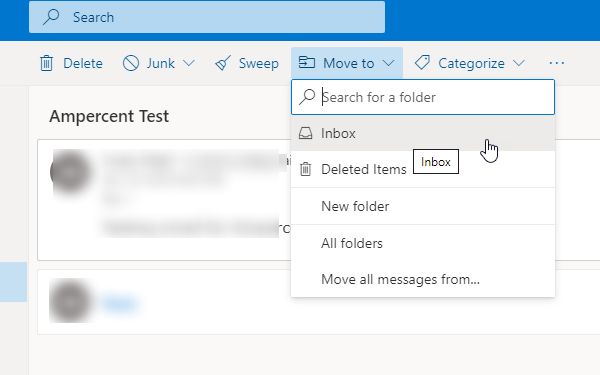
- Step-2: Then expand the “Move to” option and select Inbox from the list. An email will be sent to your inbox immediately.
What If Archived Emails Are Deleted?
If something like that has happened to your archived emails then you can try these 3 ways.
- Check the “Deleted Items”folder in MS Outlook.
- Recover archived emails in Exchange Server.
- In case of heavy damage to the PST file, use the automated solution mentioned in the upcoming segment.
Retrieve Deleted Emails from Outlook Archive – The Expert Way
Get a professional solution to retrieve deleted emails from Outlook archive folder without installing it on Windows OS. To Recover Deleted Emails from Outlook 2021, 2019, 2016, 2013, and below versions, choose Microsoft Outlook PST Recovery Tool.
Also, the software provides the option to retrieve deleted Emails, Calendars, Contacts, Tasks, Journals, Notes from Outlook 2021, 2019, 2016, 2013, 2010, 2007, 2003, etc. This program also helps to Repair Outlook PST File without Scanpst tool.
Steps to Recover Archived Outlook Emails If They Got Deleted
Follow the steps mentioned below to retrieve deleted emails from Outlook archive folder:
- Step-1: Select or Search for Outlook Data Files from Local Drive.

- Step-2: Scan Outlook Data Files by Quick or Advance Scan Option to Retrieve Deleted Emails.

- Step-3: Preview Retrieved Outlook Emails then Click on Export Button to Save Data.

- Step-4: Next, Select Saving Option (PST) then Select Destination Folder to Finalize the Process.
Conclusion
That’s all! This guide showed you how to retrieve emails from Outlook archive folder manually and also by using an automated approach. The professional solution is also recommended to retrieve deleted emails from Outlook archive folder. We hope you find this article beneficial. Do share it with fellow users in need.