Calendar Converter Tool – Convert ICS Files into 8+ Formats

Exporting calendar files from one format to another is a common problem faced by users who work with different platforms, such as Microsoft Outlook, Google Calendar, and others. In this article, we will talk about how a professional solution like Calendar Converter Tool will help you to convert ICS files in a hassle-free way. Let’s learn more about this advanced utility.
What is an ICS File? Overview
An ICS file is a widely used file format which stores calendar data such as events, meetings, tasks, and reminders. It follows the iCalendar format, which allows users to share scheduling information across different platforms. These files can be opened and used in applications like Microsoft Outlook, Google Calendar, and Apple Calendar, making it easy to import or export event details. Even though ICS file offers great compatibility and ease of data exchange, still there are certain situations where users often face several challenges when they are working with these files.
What are the Common Challenges with ICS Files?
In this section, we will discuss the common challenges that users face when they are working with the calendar files, which can affect the accuracy and usability. Also, understanding them can help you in avoiding errors and data loss.
- Duplicate Entries: Importing the same ICS files multiple times can create duplicate events.
- Time Zone Errors: Incorrect time zone settings can cause events to appear at the wrong time.
- Limited Editing Options: Directly editing ICS files manually can be complex and error-prone.
- Import/Export Restrictions: Some platforms have limitations on importing or exporting ICS files efficiently.
- File Corruption: ICS files can become corrupted, making them unreadable or incomplete.
- Data Loss or Missing Information: Some event details, like attachments, reminders, or time zones, may not transfer correctly.
- Large File Handling: Opening or importing large ICS files with multiple events can be slow or may fail.
To fix these issues, users often choose to convert their ICS files, which provides easy sharing and compatibility.
How to Manually Convert ICS Files?
Nowadays, users prefer manual methods to resolve ICS file challenges because they are simple and easy. Also, these approaches offer better control over calendar data. But they can be time-consuming and require careful handling. The following user-friendly solutions are:
Method 1: Convert ICS Files Using the Import/ Export Feature
- Firstly, open Microsoft Outlook or Google Calendar.
- Then, import the ICS file into the calendar.
- After that, preview all the events to avoid structure errors.
- Then, use the export option to save the calendar into desired format, like CSV.
- Now, save the exported file to your system.
- Now, open and verify the output file.
- Finally, import this exported file into your required platform.
Method 2: Edit and Verify ICS file:
- Locate and right-click on the ICS file, then open it with a text editor app.
- Then, check the important fields like BEGIN:VCALENDAR, BEGIN:VEVENT, DTSTART, DTEND, and SUMMARY.
- After that, correct any missing or incorrect values
- Next, make sure that the file ends with proper tags, like END:VEVENT and END:VCALENDAR
- At last, save the file and close the editor application.
Method 3: Split Large ICS files for an Organized Structure:
- Open the ICS file in Notepad or any other text editor application.
- Then, divide large calendar files into smaller sections by clicking on the VEVENT entries into separate files.
- After this, check for duplicate events such as the same date, time, and title, and then remove them.
- Now, save each file separately with a proper .ics extension.
- Lastly, import the smaller ICS file into your calendar application individually.
While manual methods help users to manage and convert ICS files, they come with several limitations, which are:
- Manual methods are time-consuming, and it requires technical knowledge while exporting ICS files.
- These solutions come with a risk of errors and data loss.
- The user-friendly solution does not handle large and bulk ICS exports.
To overcome such limitations, we will now take a look at a professional solution to convert multiple ICS files seamlessly.
RecoveryTools Calendar Converter – Quick Solution
ICS Conversion Software is a safe application that allows the users to convert multiple ICS files into 8+ different export formats, such as PDF, CSV, PST, HTML, and many more. It provides an option to bulk export calendar files without affecting the original calendar data. The software is designed with many advanced settings like Page Layout, Naming Convention and many other features. It offers selective export options like Date Range filters, etc. This tool is compatible with both Windows and Mac OS. Also, it has simple and easy-to-use interface for beginners and experts. Below we have provided a Quick step guide:
- Download and install the software in your device.
- Then, click on the Add file or Add folder to upload the ICS file.
- Now, choose the Output File format from the export list.
- At last, click on the Export button to begin the process.

Analyze Bulk ICS File at Once
RecoveryTools Calendar Converter Tool
$29
Convert multiple ICS Files in Bulk
- Supports Export in 10+ File Formats
- Selective Export options
- Easy to Use Interface
- Compatible with both Windows & Mac
Key Characteristics of ICS File Converter Software
The Calendar Converter Tool offers multiple features to handle different calendar conversion needs effectively. It allows users to convert multiple ICS files into different formats accessible on various platforms. Here are the advanced features offered by this smart utility.
- Converts ICS file into Email-supported formats such as PST and MSG
- Export calendar files into PDF, CSV, VCS, PST, HTML, TXT, iCal, Print and ICS
- Option to upload ICS using Add File(s) or Add Folder(s)
- ICS Converter Software offers the option to Draw Out Files during the conversion
- Provides the Advanced Settings option to apply Filters during the process
- Offers a feature to Create Single Output File of Every ICS
- Generates an Export Report to show the details of the procedure
- Supported with both Windows and Mac OS versions
Calendar Converter Tool – Video Tutorial
Here is the detailed video tutorial on the steps of using ICS converter software for more clarity and better understanding.
Elaborated Functionalities of ICS File Converter Software
Here, we have discussed the prime features of this reliable and effective solution, which helps users to export ICS files hassle-free.
-
Convert Multiple ICS Files: The ICS Calendar Converter Tool exports multiple ICS files in bulk through the Add file or Add folder option. The Add file button allows a single ICS import, and the Add Folder option allows a folder containing multiple ICS files for conversion.
-
Provides Multiple Export Options: The ICS File Converter Tool offers option to export ICS files and then save them into different export options such as CSV, PDF, PST, MSG, and others, depending upon your requirement, without losing important calendar data.
-
Offers Advanced Settings Features: The conversion tool also provides advanced Settings filters for selective exports. It includes:
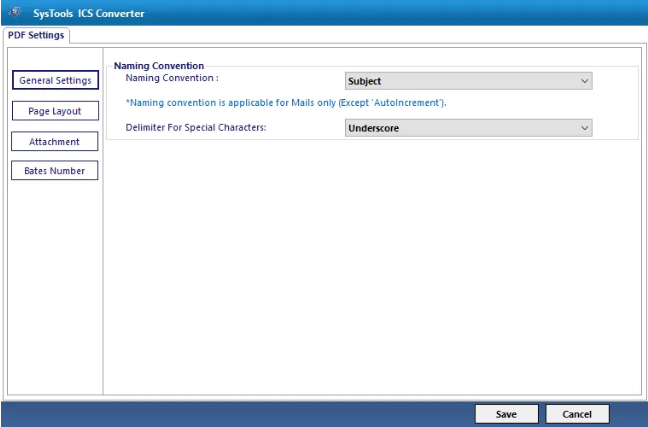
Naming Convention: You can choose the File Naming Convention option to save the resultant file using Subject, Subject + Start Date, and AutoIncrement.
Date Filter: Apply the Date Filter option to export only specific times of calendar items. You can only set the date “From” to “To” and the software will only convert the specified date ICS calendar details. -
Draw Out File Option: This software gives you the option to remove unwanted ICS files using the Draw Out File feature while converting files. It gives you access to remove a single file or multiple files by choosing the Remove or Remove All option.
-
Provides Create a Single ICS Feature: ICS Calendar Converter Software allows you to create single ICS from multiple ICS files using the Create Single ICS feature. It does not take much time and provides you with a combined calendar file without errors.
-
Offer Break ICS File by Size: This utility gives a feature to choose the output file size option after the conversion is completed. Using this option, the user can split their large ICS file into the required file size.
-
Export Report: Once the conversion is completed, the Windows ICS file converter tool provides you with Export Report containing Success Count, Fail Count(if any), and the export status of the procedure.
-
Compatible with Windows & Mac OS: This tool is supported with both Windows and Mac operating systems. The supported versions are:
Windows: Windows 7 (32 & 64 bit), Windows 8(32 & 64 bit), Windows 10 (32 & 64 bit), Windows Server 2008, Windows Server 2012 R2, Windows Server 2022, Windows Server 2016, Windows Server 2019, Windows 11 (64 bit).
Mac: MacOS X 11.0 (Big Sur), MacOS X 12.0 (Monterey), MacOS X 13.0 (Ventura), MacOS X 14 (Sonoma), MacOS X 15.0 (Sequoia) and above versions.
Working Steps of the ICS Converter Tool
This section shows the detailed steps of the tool in a clear and simple way. It helps the users to understand how to perform tasks quickly and efficiently without any confusion. By following these steps, you can ensure accurate results with minimal effort.
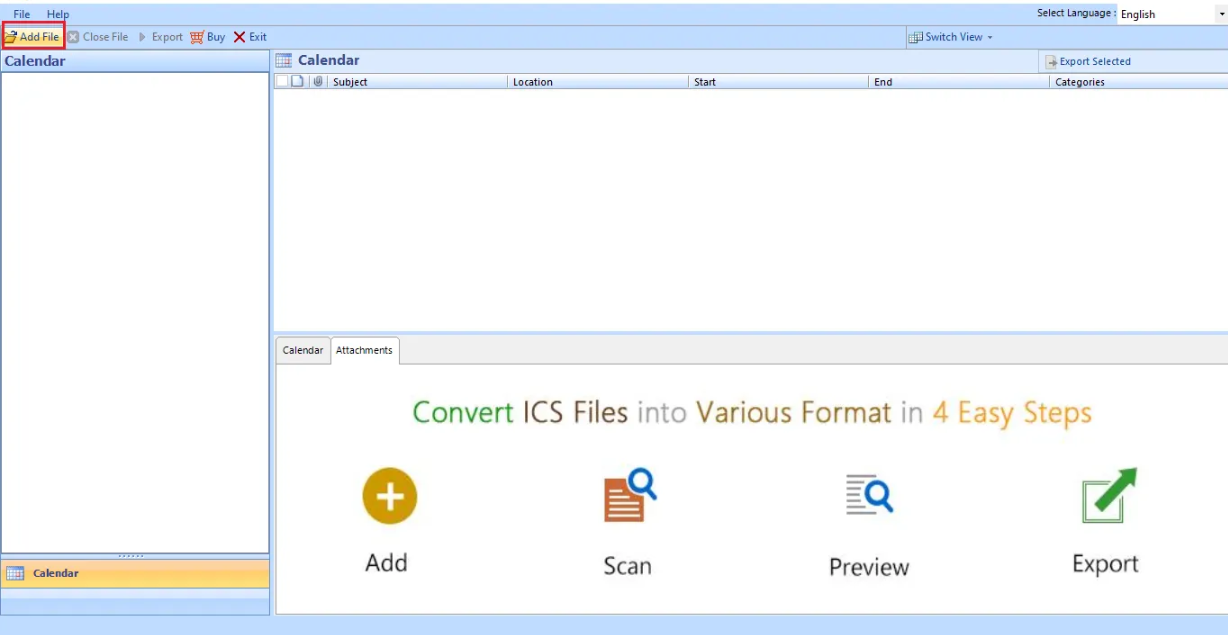
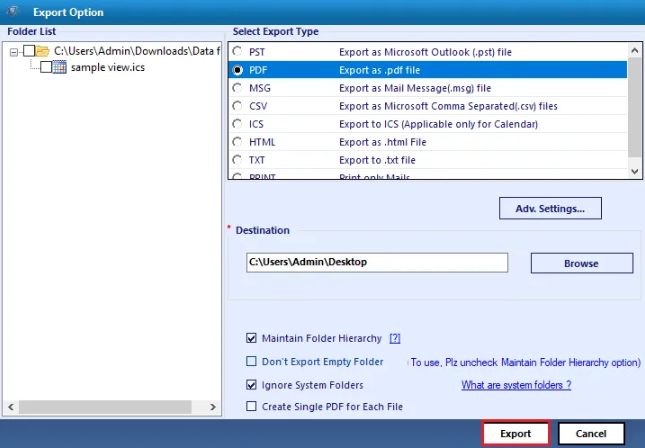
1. Download and install the calendar converter software, then click on the Add file or Add folder option to upload ICS files.
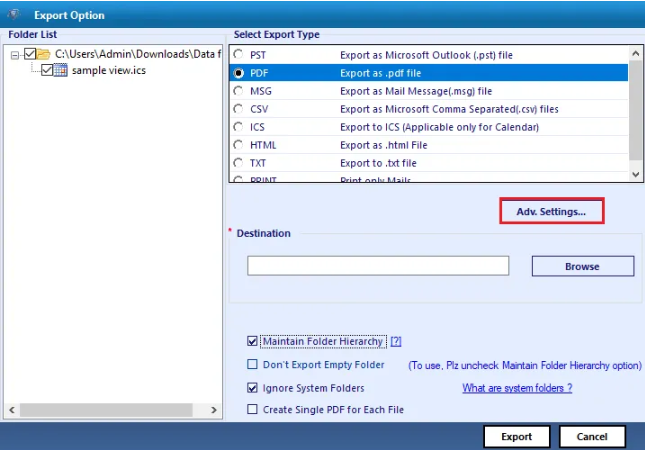
2. Then, choose the Export Format from the file type list to convert ICS file to PDF, CSV, or other formats.
3. After this, tap on the Advanced Settings option to apply filters.
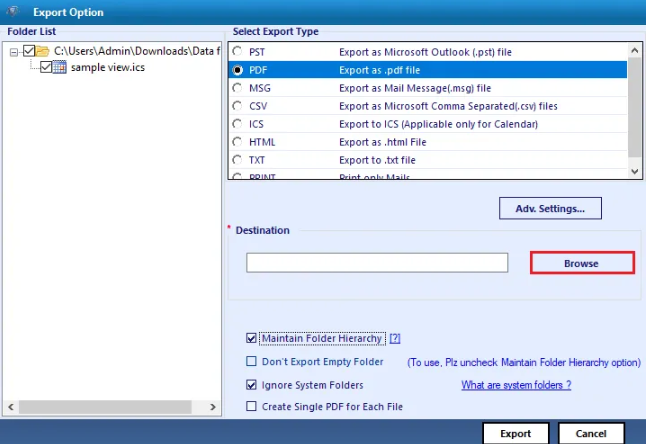
4. Now, tap the Browse button to select the destination path to save the output file
5. At last, click onthe Export button to begin the conversion process.
Calendar Converter – Software Specifications
Know all the prerequisites before using the advanced tool.
- Hard Disk Space: 100 MB of free hard disk space required.
- RAM: 4 GB
- Processor: 1 GHz processor (2.4 GHz is recommended)
- Microsoft .NET Framework 2.0 or above.
- If you are using Windows 11/10/8/7, then please launch the tool as “Run as Administrator“.
- Windows 7 (32 & 64 bit), Windows 8(32 & 64 bit), Windows 10 (32 & 64 bit), Windows Server 2008, Windows Server 2012 R2, Windows Server 2022, Windows Server 2016, Windows Server 2019, Windows 11 (64 bit)
- MacOS X 11.0 (Big Sur), MacOS X 12.0 (Monterey), MacOS X 13.0 (Ventura), MacOS X 14 (Sonoma), MacOS X 15.0 (Sequoia) and above versions.
- Trial Limitations: Save 10 calendar items during the export.
Conclusion
In this blog, we have thoroughly discussed about how to convert ICS files effectively. We have also mentioned common challenges that users face while handling ICS files. Furthermore, we have given manual solutions, such as import & export, edit and verify, and split ICS files. These manual solutions have several limitations, hence, to overcome these manual drawbacks, we have suggested an expert way to convert ICS files into 9+ different formats. This tool is designed with many intuitive features that are useful for users who want to convert their iCalendar files. The Calendar Converter tool offers both Free and Full versions: the free version will convert and save 10 calendar events, whereas the full version allows you to save full calendar events at once, while maintaining the calendar data accuracy and integrity.
Frequently Asked Questions
1. How to convert multiple ICS files?
Ans: You can convert your ICS files using export-import, verify, and edit methods, but for an effective and accurate choice, here’s a quick 4-step solution:
- Download and install the ICS Calendar converter software
- Then, click on the Add File or Add Folder option
- After that, select the export format from the list
- Finally, click on the Export button and start the conversion process.
2. How can I check my data before converting the ICS File?
Ans: You can preview the calendar data before the conversion using the expert tool, as the manual solution does not provide this option.
3. Does this tool support the option to remove unwanted files during the process?
Ans: Yes, the Calendar Converter tool offers the Draw Out ICS files option when you want to avoid unwanted ICS files while converting a single file or folder.