How to Download Emails from Gmail in Bulk (Complete Guide for 2026)

Blog Overview – You open your Gmail inbox, thinking everything is normal, until one day you need those hundreds of emails before a certain date. You then realize there is no simple “Download All” button. Your remaining option is to click one email at a time, attachments getting missed and time passes by. It sounds familiar right ? In this blog we will show you exactly how to download Gmail emails in bulk. Without any data loss, like attachments.
Why People Struggle to Download Gmail Emails in Bulk
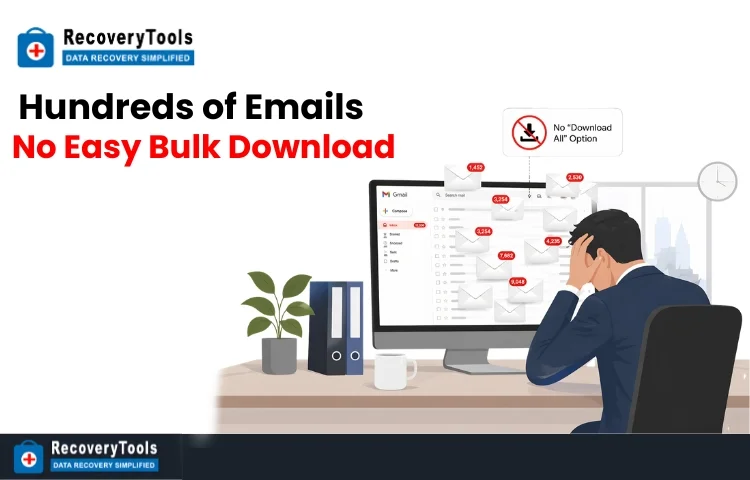
Downloading emails in bulk sounds very simple until we try it, Gmail is an excellent communication tool, but not a storage or backup tool. When users try to download emails, they face issues like slower downloads, missing attachments, and confusing file formats. Around the globe, how to download Gmail emails in bulk is a critical question for;
- Business owners managing invoices and business papers.
- Lawyers handling email evidence.
- Professionals switching companies
- Students need to save bulk research documents.
The real problem is not just downloading Gmail emails. It is downloading and saving them completely, safely, and in a usable way.
Related read – How to save EML from Gmail Account to Microsoft Outlook
How to Download Emails from Gmail in Bulk (Manual Method)
There are two manual methods to achieve your goal which are as follows:
Save as PDF Method – This is the basic approach, which works extremely well for small data sets like 10 emails. In this you open an email and save it as PDF.
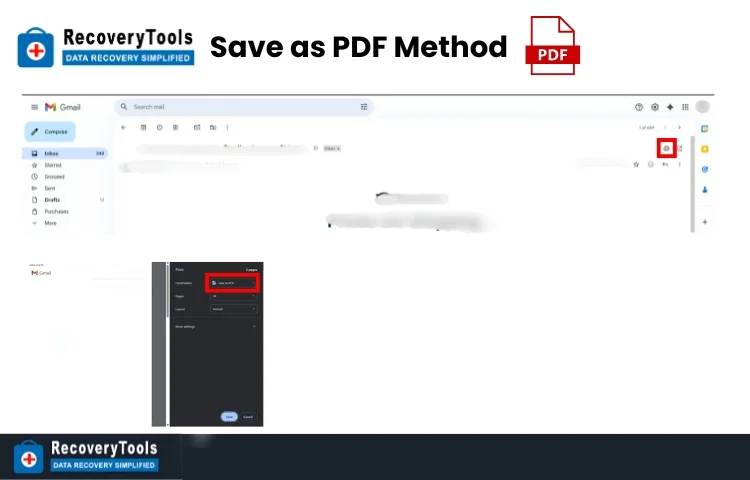
Process:
- Sign in to your Gmail account.
- Open an email you want to download.
- Click Print icon.
- Select Save as PDF.
- Email will be downloaded in PDF.
Where this method fails: This method is like transporting water with a cup when we need a pipeline. As this method has shortfalls, which are:
- Downloads only one email at a time.
- No folder management.
- Attachments have to be downloaded individually.
- Time-consuming.
Google Takeout Method – It is Google’s official way to export bulk data.
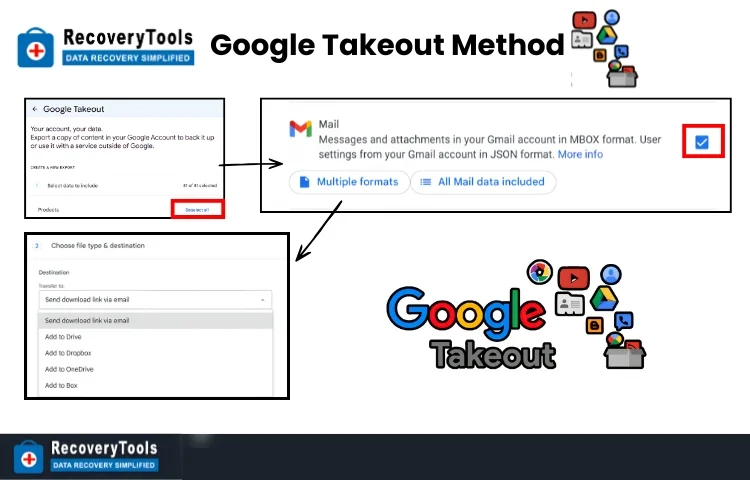
Process:
- Go to https://takeout.google.com/
- Click Deselect all.
- Select Mail option
- Decide your download type
- Start the process.
Limitations of this method:
- Maximum size per export – 50 GB
- Large-sized data exports take days.
- Attachments don’t remain neatly organized.
- Errors are common in this method.
Related Read – How to import Google Takeout to Outlook 2019, 2016, 2013
Why Downloading Gmail Emails With Attachments Matters
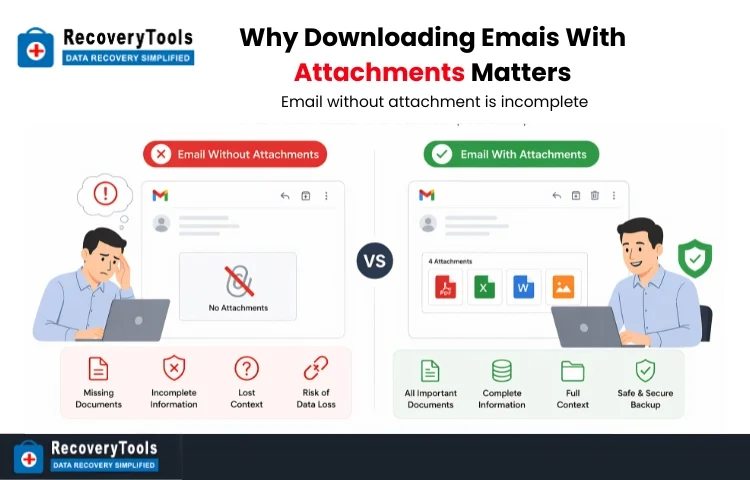
Many users do not realize this and make mistake of downloading emails without attachments. This can be thought of as saving a message but the actual document it refers to is lost. In a real-world situation:
- Contracts come as PDF’s
- Bank Statements are in PDF’s
- Invoices are packed in attachments.
- Reports arrive as Excel files.
If attachments are missing from your backup, this assures your backup is incomplete. This is where people struggle in their journey of how to download Gmail emails in bulk.
A Smarter Way to Download Emails from Gmail in Bulk
When manual methods start feeling disorganized, it’s a sign we need a more structured approach. Here Gmail Backup Tool steps in and simplifies the entire process, which turns a complicated task into a cleaner system. With the help of a tool:
- Download Gmail emails in bulk in an error-free way.
- Save emails with attachments.
- Folder structure remains maintained.
- Emails can be saved at your desired location like flash drive, hard drive, PC directly from your Gmail inbox.
- Everything remains organized and accessible.
We can think of this as moving from a messy desk to a well-organized filing system. Everything is exactly where you expect it.
Hidden Risks of Manual and Basic Methods
Before you opt for any method. It is very important to understand the risks involved, some of those risks are as follows:
- Incomplete Data – Emails without attachments loses their real value.
- Time Loss – Manually downloading can take hours, even days.
- Unorganized – Files remain scattered. This makes them hard to use later.
- Technical Barriers – Formats like MBOX need extra steps to open and manage.
These issues don’t show up immediately. They create problems when the data is needed so professionals rely on a more dependable approach so opt for a professional approach.
Quick Guide
If you are not sure which method to opt for. These simple pointers help:
- Small number of emails – Manual method helps.
- Medium Volume – Google Takeout is acceptable.
- Large volume with attachments – Professional tool-based approach is preferred.
Note – The more important your data is. The more dependable your method should be.
We hope from the information you are now clear on the process of how to download Gmail emails in bulk.
Mistakes to Avoid
Even experienced professionals make these mistakes:
- Downloading emails via “Save as PDF” method but forgetting to download attachments.
- Rely only on Gmail storage, and when limited storage ends, they panic.
- Not organizing exported data.
- Wait till the storage issue arises.
Creation of backup works best when done early, not in panic.
Key Takeaway
Downloading emails from Gmail in bulk is not just about saving messages it’s about protection of information that matters. Manual methods may seem simple at first but they quickly become inefficient as your data grows. Professional structured approach ensures your emails, attachments, and folders remain complete and usable when you need them.
If you are a professional or anyone who deals with large volume of emails but needs a reliable way to keep everything organized. Selection of a smarter way in the form of a dedicated tool can significantly save time and effort in the long run.
Frequently Asked Questions
Q – How can I download Gmail emails with attachments?
There are multiple methods. If one needs an error-free method for larger Gmail data, a structured approach ensures emails and attachments are saved together.
Q – Is there a limit to downloading Gmail emails?
A – Yes, Google Takeout has a limit of 50GB per export. Larger and volume oriented data may require multiple downloads.
Q – What is the easiest way to download Gmail emails in bulk?
A – The easiest method is that which automates the bulk download thing. This approach saves time and keeps emails properly organized offline at your desired location and in your desired format.