How to Import Contacts from Excel to WhatsApp? Overview

WhatsApp is a trendsetting messaging platform developed for smartphones running Android, Windows, iOS, Symbian and Blackberry OS. Most of your friends use WhatsApp to exchange text, videos, images. If you don’t have a smartphone, you may find yourself out of league. But not now, because you can install WhatsApp on your laptop/PC and enjoy this latest technology with proper internet connection. But just imagine that you have many contacts in your excel sheet and you want to import contacts from excel to WhatsApp but you don’t know how to do it. do not worry! This article will clear all your doubts regarding the same. So, to find out all the answers, keep reading this post to find out the complete process of importing bulk contacts to WhatsApp.
Solutions to Import Contacts from MS Excel to WhatsApp
Automated Solution to Import Contacts from Excel to WhatsApp
Unfortunately, there is no direct way to export contacts from Excel to WhatsApp. However, you can convert Excel contacts to vCard files and then import the VCF files to WhatsApp. For this, we recommend using
Excel to VCF Converter Software to export Excel XLS, XLSX, CSV to vCard file format.
Download Now Purchase Now
It is compatible with Windows OS 11, 10, 8.1, 8, 7 and Microsoft Excel 2021, 2019, 2016, 2013, and below versions. The Tool provides field mapping options i.e. Excel column mapping and vCard field mapping. Furthermore, the Software is designed with an interactive user interface and requires no technical expertise.
First of Importing Excel Contacts into WhatsApp
To import contacts from Excel sheet to WhatsApp, it is very important to export Excel contacts to VCF file first which can be easily imported to WhatsApp. See the step-by-process to import contacts from Excel here:
1: Free Download and run the software and click on Browse button.

2: Next, Select the Required MS Excel File and Click the Open Button.

3: Preview Complete Content of Selected Excel XLSX / XLS / CSV File.

4: In Next Windows, Map Excel Fields to vCard Fields, Click on Next.

5: Select vCard Version: 2.1, 3.0 & 4.0 and Click on Convert to Start Process.

Once the contacts are transferred from MS Excel to vCard file, the process of importing contacts from Excel (as VCF file) to WhatsApp becomes easier.
Complete Process to Import VCF File into WhatsApp
Once you have the Excel contacts in the VCF file, you can easily import them to WhatsApp app on PC.
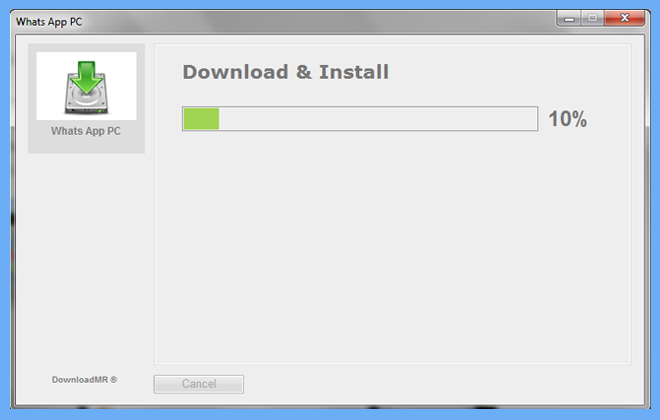
1: To use Whatsapp on desktop, you must have the “Bluestacks App Player Software” installed on your system.
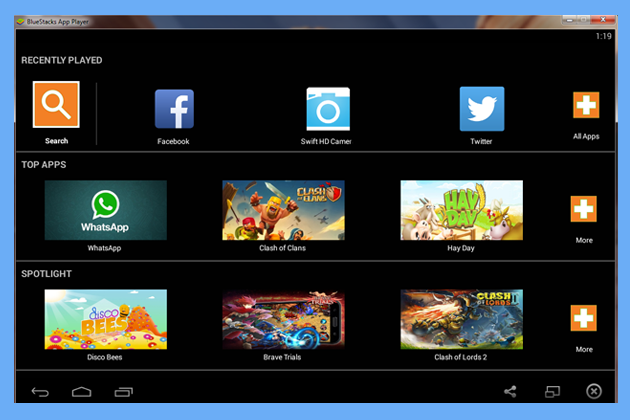
2: After installing the software on your system, open it and click on the “WhatsApp” icon to continue.
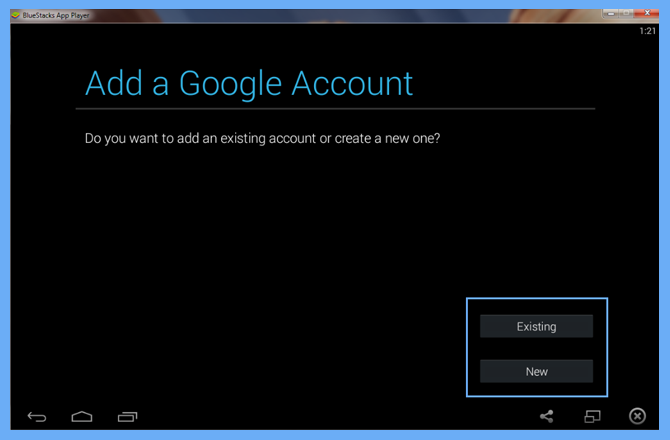
3: Now to download and install Whatsapp on your machine you need to add your “New or Existing” Google account as per your requirement.
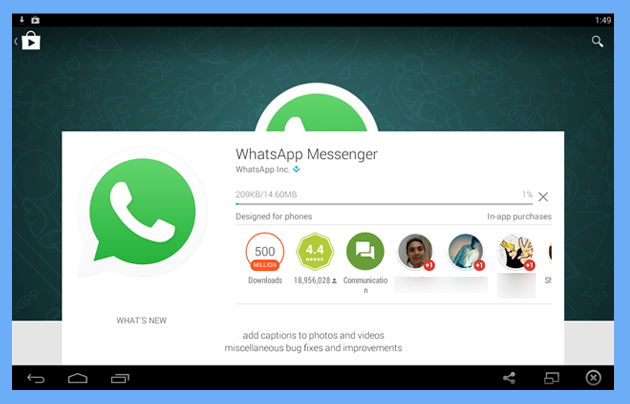
4: Now when the Google account is set up successfully, click the “WhatsApp” icon in Bluestacks and redirect to Play Store to install.
5: After successful installation of WhatsApp, please set up by providing your Mobile Number so that a code will be sent to your mobile phone for verification.
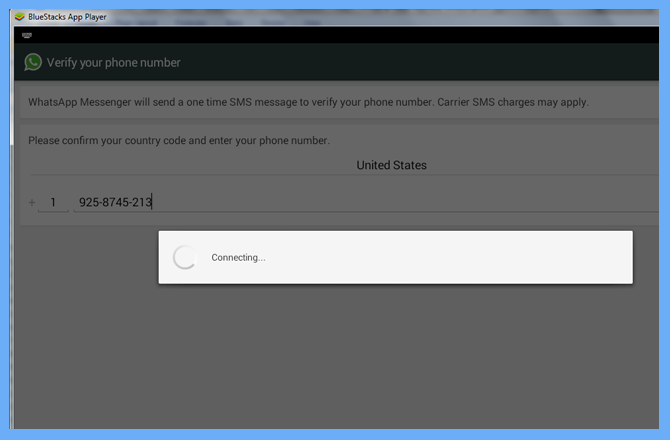
6: Once the account is fully verified, set up your profile by adding a Profile Picture and Username.
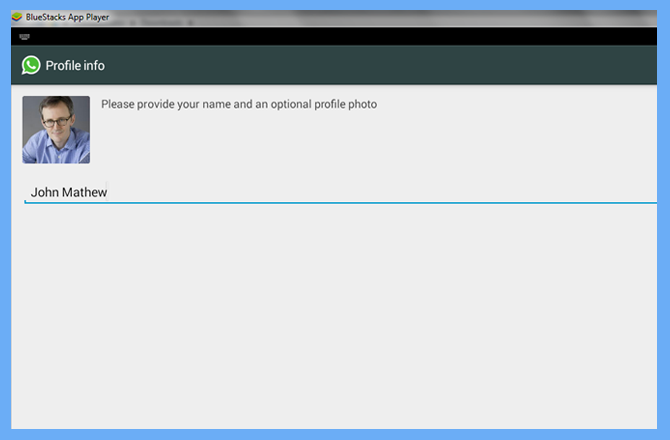
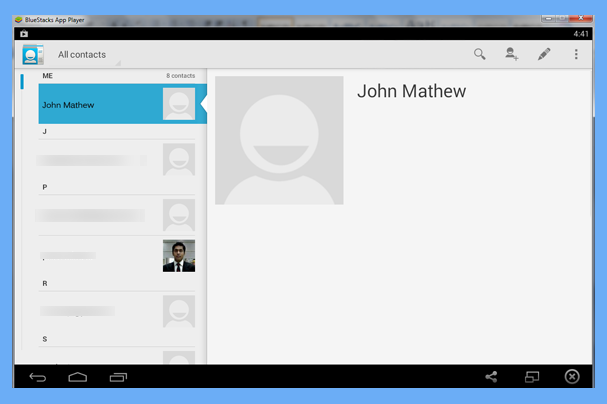
7: When Whatsapp has been set up successfully, you will see it and by default it will add some contacts directly from your Google account.
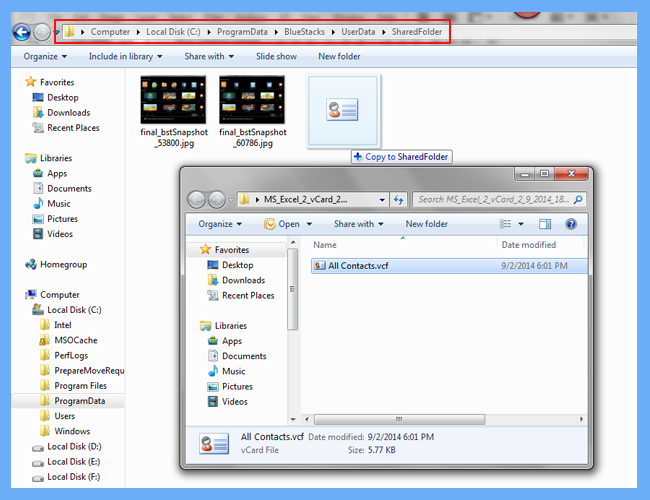
8: Now you need to copy the converted Excel contacts to VCF format and drag them to the Shared Folder (by default, a shared folder is created on the highlighted path).
Note: To import VCF files (converted contacts from Excel) into Whatsapp, you need Astro Manager installed on your system. Astro File Manager is a tool developed for Android devices to navigate to different folders and perform tasks like moving, copying or deleting. You can download Astro Manager from the Play Store by typing “Astro Manager” in the search option available in the Bluestacks app.
Now you will have 2 ways to import contacts from VCF file (exported from Excel) to Whatsapp:-
Procedure 1
1: Once Astro Manager is successfully installed, open it and click on the “SD” card option.
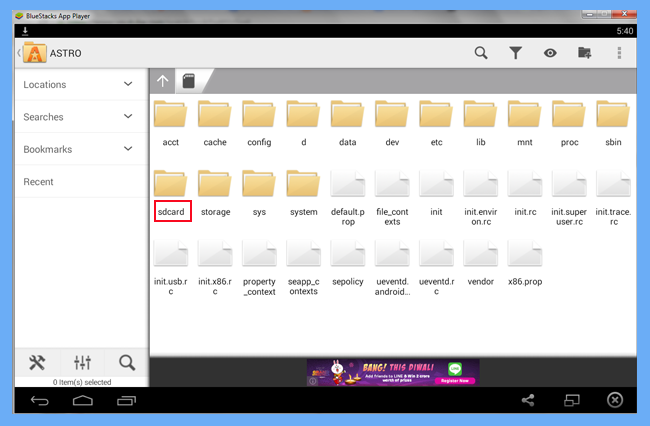
2: Now when you visit the path “SDCard >> Windows >> BstSharedFolder” you will see the Allcontacts.VCF file that we copied to the shared folder in the previous steps.
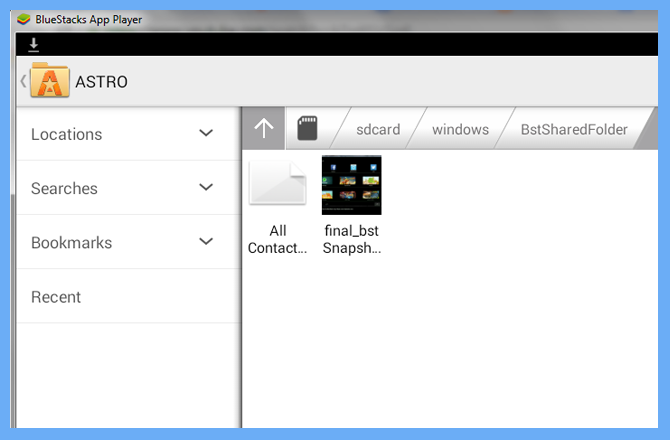
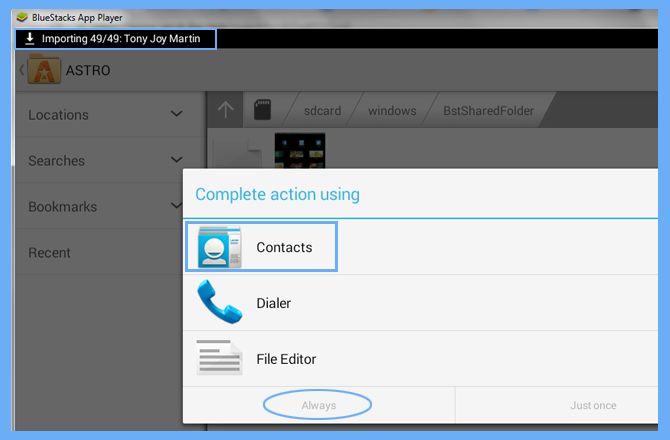
3: Now open the VCF file and you will see 3 options in the pop-up menu, click “Contacts”. You will see that the process of importing contacts starts from the top left corner.
Procedure 2
1: In your WhatsApp account, go to the Settings option and select the Import/export option from the dropdown menu. Now, a window will pop up with some options, select the option “Import from storage”.
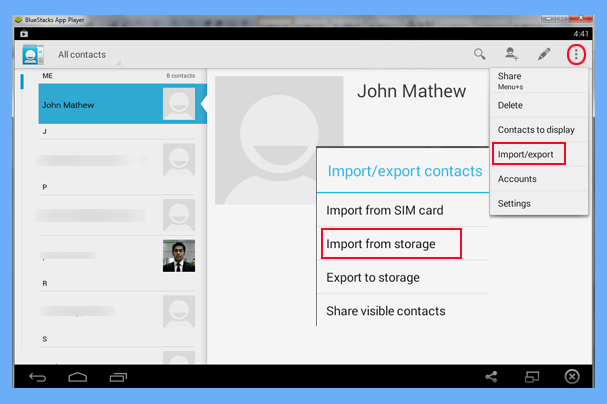
2: Now, the import process begins and there is a pop-up saying “Allcontacts.vcf will be imported shortly”.
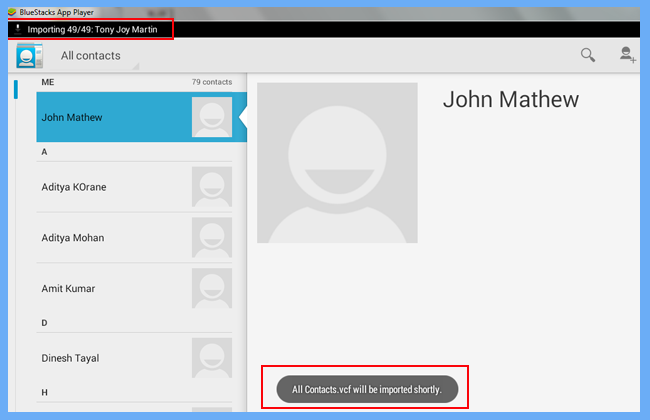
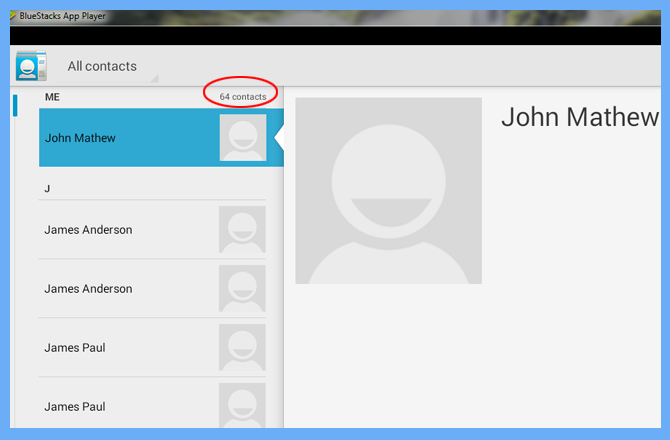
Whether you choose process to import VCF file into Whatsapp account, or proceed to import Excel contacts to Whatsapp PC account, you will see this screen after the contacts are added successfully to WhatsApp.
Summing Up
In short, we can easily say that WhatsApp is a leading messaging service used by billions of users on their smartphones, laptops, desktops, etc. So, in the above post, we have mentioned the best solution to import contacts from Excel using WhatsApp. Also, users can download a free trial version to evaluate how the powerful and trusted Software works.