How to Recover Permanently Deleted Emails from Outlook PST File Even After 30/60/90 Days)?

Whether you have accidentally deleted email messages, emptied your mailbox, or lost access to your PST file, losing important emails is not fun. We get that and that’s why we hae drfted this helpful guide for you. In this article, we will share how to recover deleted emails from Outlook PST file. And yes, even the ones hard deleted or deleted with the shift + delete command. So, let’s not wait any longer and see how you can retrieve deleted emails from Outlook after 30/60/90 days with top solutions.
Common Reasons Emails Can Get Deleted in MS Outlook
- Oftentimes, users accidentally delete their important email messages by mistake.
- Emptying the “Deleted Items” folder eventually results in hard email deletion.
- Using the “Shift + Delete (permanent deletion)” command.
- Some auto-archive and email retention policies may also result in lost emails.
- Repeated Outlook PST file corruption may frequently result in missing email messages.
- Abrupt system crashes or issues like Outlook error 0x800ccc0e are often major causes.
These are some of the most common reasons responsible for deleted emails in MS Outlook. Now that we are aware of why the emial deletion happens, let us move further and check out how to tackle it.
Types of Email Deletion in MS Outlook
Firstly, we need to know what we mean by “Deleted”, as in most cases, deleted doesn’t mean gone forever. That means when you deleted an email, it isn’t truly deleted, but it goes to a folder given by the particular application. Basically, there are four types of deleted emails:
- Shift+Deleted Emails: This case arise when you temporarily wanted to delete an email but somehow it got deleted permanently. This happens when you deleted the email with the help of the shift. Even Outlook Inbox Repair Tool cannot recover permanently deleted emails from PST file.
- Deleted from “Deleted Items” Folder: When you accidentally delete an email from Outlook, it goes to Deleted Items or Trash Folder. It remains there for a few days or a few weeks. You can still access and recover those deleted emails from these folders.
- Expired Retention Period: It means a period of time until items within a Deleted folder will expire. The expired retention period begins from the date of creation for emails that you send or the date of receipt for emails that you receive.
There are a few retention tags that are used to apply retention settings to folders. These specify how long a message remains in a mailbox and what action should be taken when the message reached the specified retention period. After retention period expired, we cannot recover deleted emails from Outlook. - Deleted Emails from Dumpster Folder: The dumpster folders refer to recoverable deleted items of the mailbox. The dumpster folder has invisible subfolders. A dumpster has its parts which consist of layers and each layer has its own purpose of saving the email. As we have said the these are invisible where you can directly access some of them and you will need to apply other methods to access other invisible layers.
Parts of the Dumpster folder are deletions, Versions, Purges, Audits, Discovery Hold, and Calendar logging.
Recover Emails that are No Longer in Your Deleted Items Folder
If you have deleted the emails and the emails are still in any of the given folders then you can recover them easily. But, if they have been deleted permanently or they are no longer in your deleted items folder then you will not able to retrieve them back manually. Hence, you will need to go for a reliable and automated solution to get your emails back. In this situation, we will help you.
How to Recover Deleted Emails from Outlook 2019, 2016, 2013?
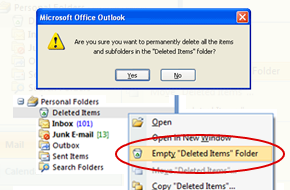
If you have accidentally deleted Outlook emails and you don’t have a backup. Although, with Microsoft Outlook you can recover the deleted emails if they are in Deleted Folder, but what if you have cleared those folders also without realizing the future needs of the emails. Unfortunately, manually you can’t recover the permanently deleted emails from Outlook.
Don’t worry though, if you do not have any backup of the emails and still wants to recover the emails, there is still a chance to recover your files with the professional tool.
Obviously yes, you can and you want to recover the emails asap. We have got you covered. Here, we will cover how to recover deleted emails from PST Files. For this, we have shared about the Outlook PST File Recovery Software solution in this article.
Step By Step Guide to Recover Deleted Emails from Outlook
Follow the steps given below to know how to use the tool:
- Firstly, download and launch the utility on your computer
- Then, select Add File that you want to recover and preview emails with attachments
- After that, view Deleted Items and recover them
- Lastly, hit on the Export button and save the recovered file to any location.

There might be chances when you unintentionally have deleted the emails permanently and later you realize the need for them. In this guide, we have shared the best solution that you use to recover deleted emails from Outlook through trusted professional Software.
You can easily retrieve the deleted emails by performing a few easy steps by using the mentioned utility that too without any fear of data loss. In addition, you can save the repaired file in different file formats.
Conclusion
In this guide, we discusses how to recover deleted emails in Outlook PST files. To tackle the issue, we discussed numerous manual solutions as well as one automated approach. Choose any solution to your liking. However, opt for the manual ways only if you have appropriate technical knowledge to properly execute them. If not, choosing the automated solution to repair PST files without ScanPST is a reliable and secure choice.