Export Email from Gmail to PST (Simple Guide)

Blog Overview – You opened your Gmail inbox and felt everything is safe which it is. You plan to take a full backup or move to Outlook soon. After you search, you found there is no direct way to export email from Gmail to PST. Now, for a user, it gets even more confusing. For your confusion removal, we will learn ways so you can do right at the first time.
From Gmail to Outlook: Why This Matters
Users usually don’t plan for backups and think about it until they require one urgently. This usually happens during job change, legal audits or when switching from Gmail to Outlook.
For more clarity on your question of export emails from Gmail to PST file we can think of Gmail like a cloud locker that we can access it anytime, but it is not fully in our control. A downloaded PST file, which is offline, is much like a personal safe of our home. Once our emails are there, they are fully organized.
If your Gmail inbox contains important contracts, invoices or any important conversations their export is not optional it’s protection. Let us check how it is done.
How to Export Emails from Gmail to PST ?
This is the method most people try as it is free. It only works efficiently when you follow each and every step carefully. This method is like connection of two apps and allowing them slowly copy data from one app to another.
This is the first method most people try because it’s free. But it only works smoothly if you follow each step carefully. Think of this method like connecting two apps and letting them slowly copy data from one place to another. To export email from Gmail to PST file follow these steps.
Step 1: Turn On IMAP in Gmail
IMAP is which allows Outlook to access your Gmail emails.
- Sign in to your Gmail account.
- Click on settings icon and then all settings.
- Click on Forwarding and POP/IMAP.
- Under IMAP, select enable IMAP.
- Save changes and done.
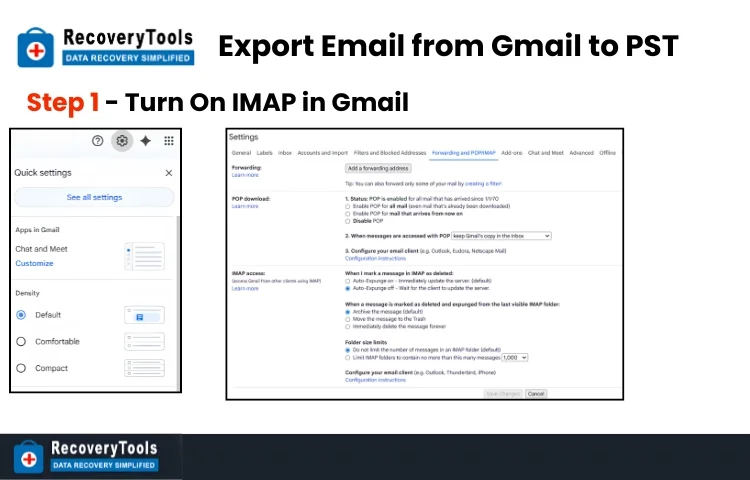
Without this step, Outlook will not be able to pull your emails.
Step 2: Adding Gmail to Outlook
- Open Microsoft Outlook.
- Click File and Add Account.
- Enter Gmail email.
- Click Connect and allow permissions.
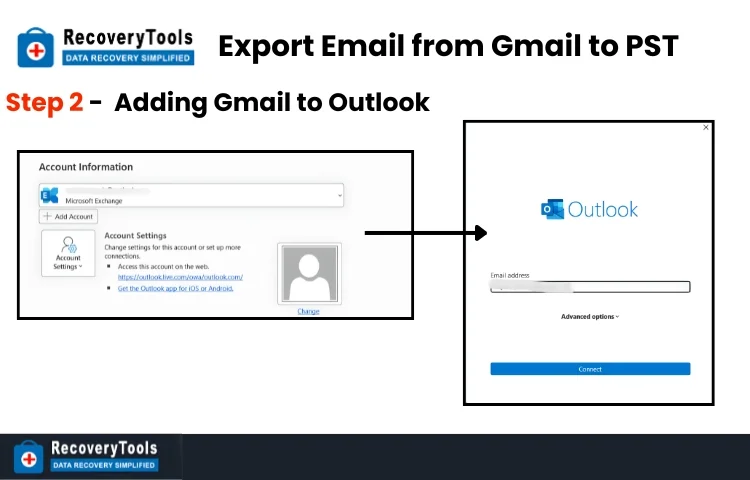
Once this is done, Outlook will start downloading emails. Your folders like Inbox, Sent, etc will start showing.
Note – It can take time for larger inboxes. Do not close Outlook when under the process as it can lead to missing emails.
Step 3: Export Gmail Emails to PST
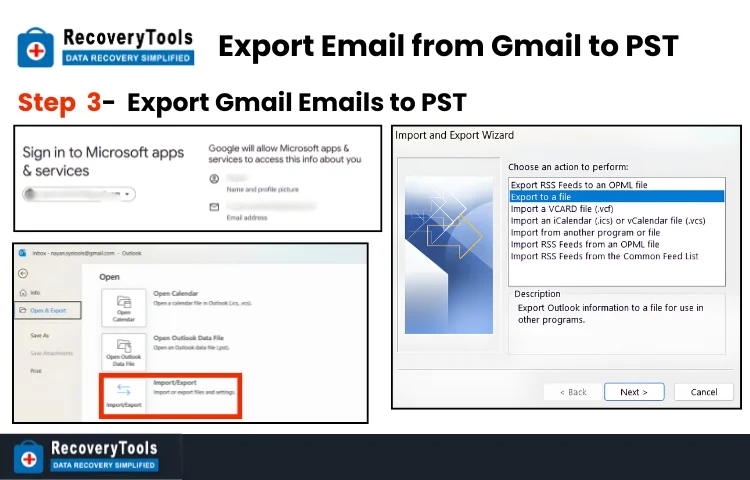
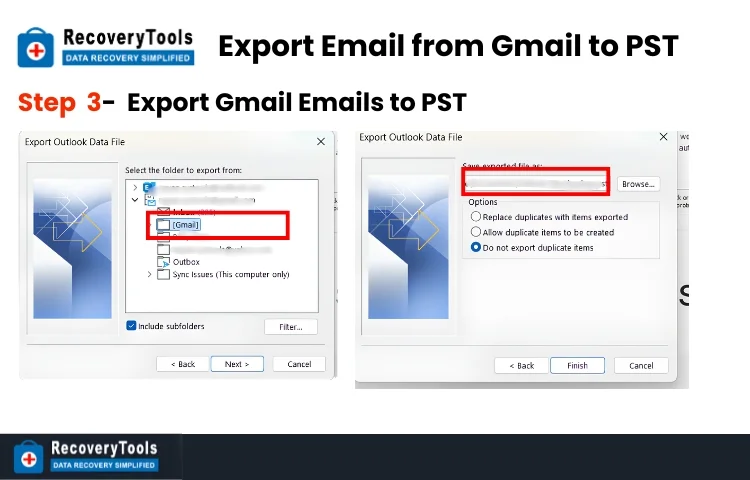
Once all your Gmail emails are in Microsoft Outlook now.
- Click on file, Open and Export and select Import/Export.
- Select Outlook Data File (.pst).
- Select Gmail account.
- Select your desired location for saving.
- Click finish.
Note – One can also set a password for the PST file.
This is the first method to export emails from Gmail to PST people try as it don’t cost anything.
Related read – How to download emails from Gmail in bulk
The Quick Way to Export Emails from Gmail to PST File
After giving the manual method a try, most users who hold important and large datasets in their inbox. Look for a method which is simpler and more faster. This is where Gmail Backup Tool steps in and saves you from syncing and other time-consuming steps. If you follow tool-based one can remain assured for
- Error-free backup.
- Folder structure and attachments remain intact.
- Proper progress tracking to keep a check.
- Backup at your desired location, like on your PC or hard drive.
It exports email from Gmail to PST directly through the following steps.
- Downoad – Download and install the tool.
- Source Selection – Select Gmail as source and Email as data to be backed up.
- Format Selection – Select your desired file format (PST).
- Filteration – Decide your date range if you want a specific time duration data.

- Sign in – Sign in to your Gmail account and verify yourself.

- Location Selection – Select your location where you want PST files to be saved.

- Final Step – Start the backup process.
Once the backup is completed, you will be having your Gmail emails in PST file at your desired location.
Why Tool-Based Approach is Safer
- Keep the folder structure as it is.
- Includes attachments and other data intact and embedded.
- Reduces the chance of data loss as no files are skipped.
- Works smoothly for large mailboxes.
Mistakes to be Taken Care of
Small mistakes can generate big problems. Mistakes people make during the process to Export email from Gmail to PST are as follows:
- Not enabling IMAP on Gmail before starting.
- Stopping Sync in process in Outlook, which leads to missing emails.
- Forgetting to check the attachments.
- Selection of the wrong export format.
Because of these mistakes, some emails don’t get exported, folder structure gets disorganized, and duplicate emails start appearing.
Related Read – Save EML from Gmail account to Microsoft Outlook
Final Thoughts
If you fall into a category of Business owners, IT admins or legal teams who handles large email data daily. Manual methods can become frustrating. Time and accuracy matter for people like you to export email from Gmail to PST.
If your inbox is small and you just need a basic copy. Free methods can work if you follow the process properly and don’t forget even a single step. If you are the one who can’t risk your data, then a tool-based approach is preferred. Your question of how to export emails from Gmail to PST is not really about the method. It is about how much your data matters to you.
Frequently Asked Questions
Q – Can I export email from Gmail to PST directly?
No, Gmail do not provide any direct PST export option. You will have to use Outlook or a tool-based approach for a quick conversion.
Q – Is having Outlook mandatory for this export process?
A – Yes, for manual export. Outlook is mandatory because PST is an Outlook format.
Q – How much time is required to export emails?
A – Time depends on your mailbox size. Small inbox can get completed within an hour, larger ones can take some more time.
Q – Will my attachments and folders be saved?
A – Yes, only if the process gets completed properly without any interruption in between. Interruptions can lead to missed attachments and a disorganized folder structure.
.