How to Save Outlook Emails to PST File? Updated Guide (2026)

A large number of users use Microsoft Outlook. These users include people who use it for lower-level personal activities, as well as organizations that use it for larger-scale internal and external communications. Archiving means saving emails and other old data in Outlook. Anything in Outlook can be saved, be it email, contacts, calendars, or tasks. So, how to save Outlook emails to PST file format?
Why You Need to Save Outlook Emails to PST File?
The best option is to archive emails in Outlook, but in many cases, many users don’t want to archive emails. Those who use Outlook for anything other than personal use may find it necessary to back up old emails and other data items. This is because an oversized PST file already exists on the system.
Sometimes users do not want to increase it because it can cause many other problems, such as slowing down the application or damaging the PST. Because if that happens, you may find Outlook PST file corruption keeps popping up repeatedly. So in this case, users may need to save Outlook emails to PST files.
How to Manually Save All Emails of Entire Account as PST Files?
To save all emails in your entire email account as PST files, follow the steps mentioned below:
- 1. Open Microsoft Outlook 2013, 2016, 2019, or 2021 and go to the File option.
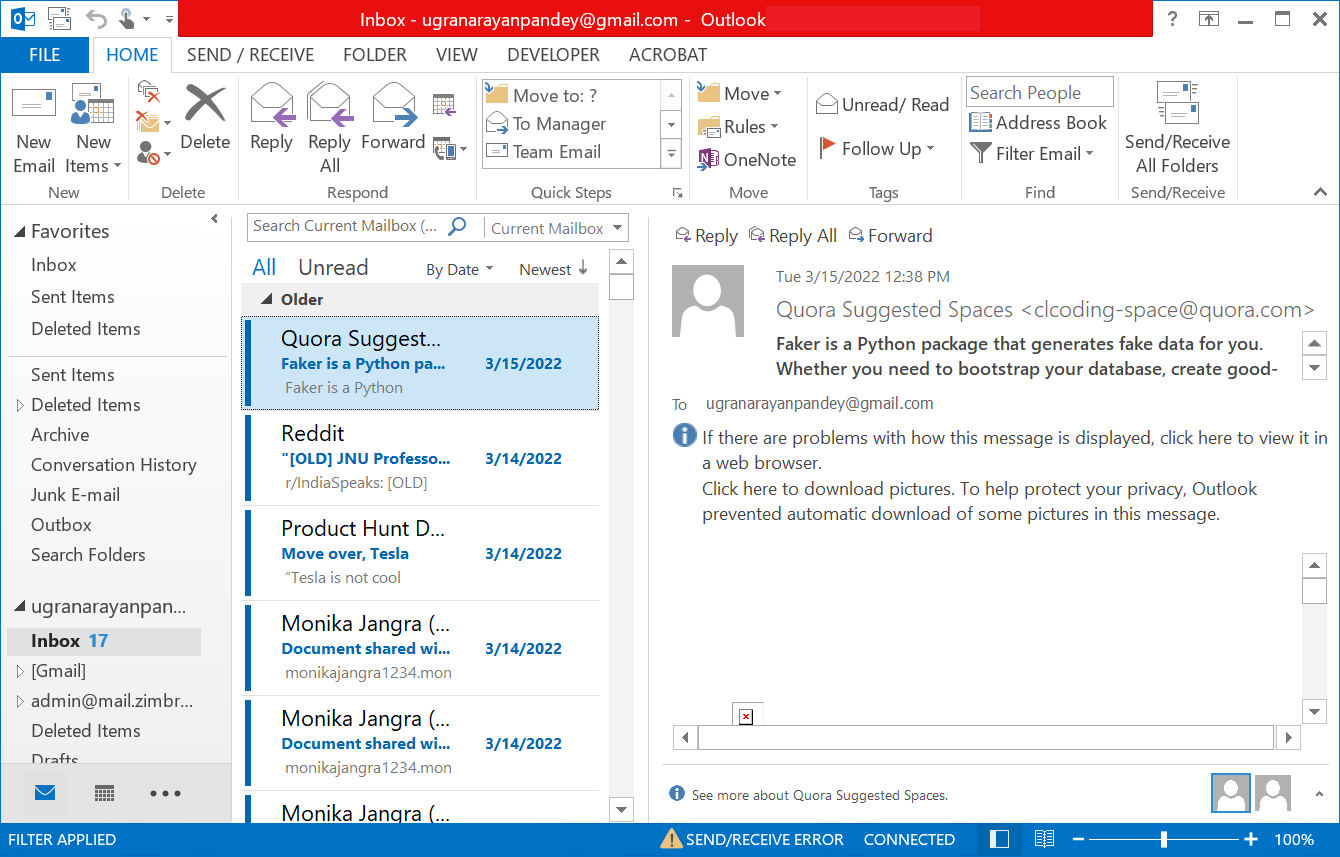
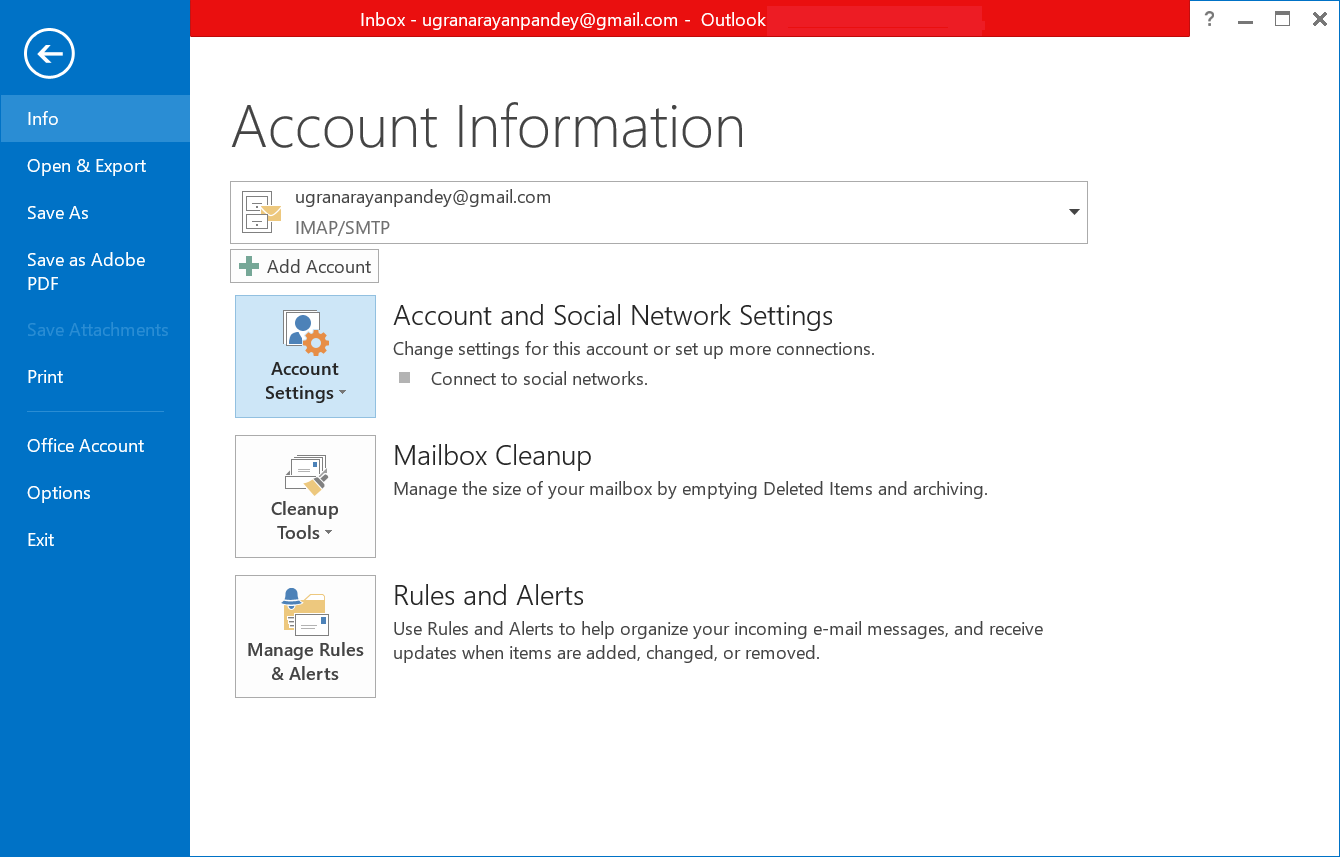
- 2. In the File option, go to Account Settings and click on Account Settings.
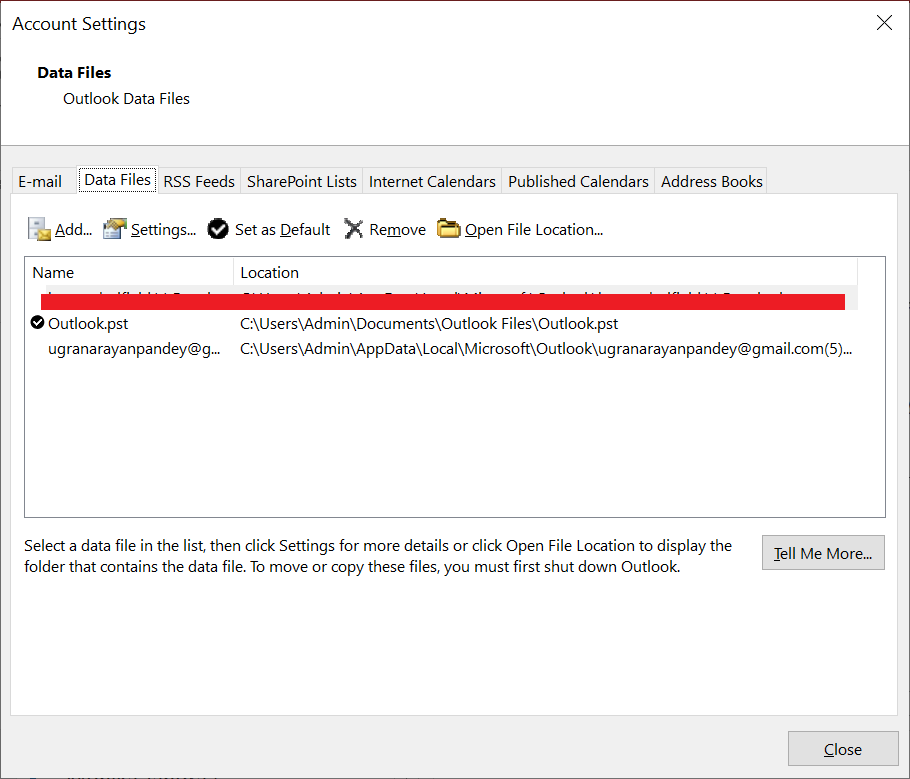
- 3. In Account Settings, go to the Data Files option.
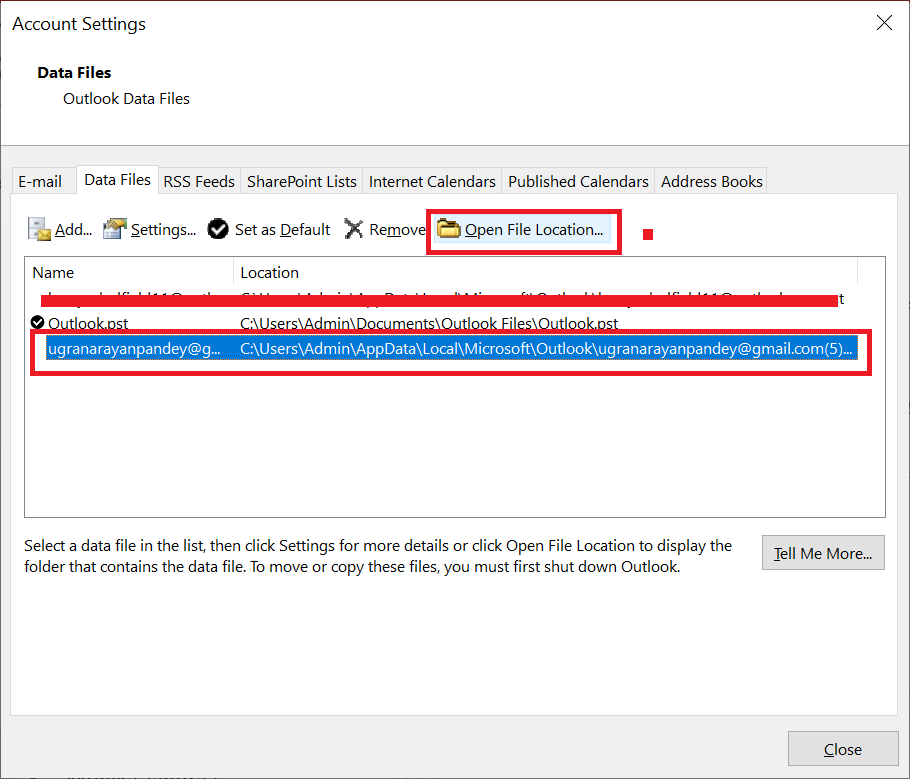
- 4. Select Required Data File and click on Open File Location.
- 5. Copy the Required PST Files and Save them to Hard Drive, Pen Drive, or any other devices or drives.
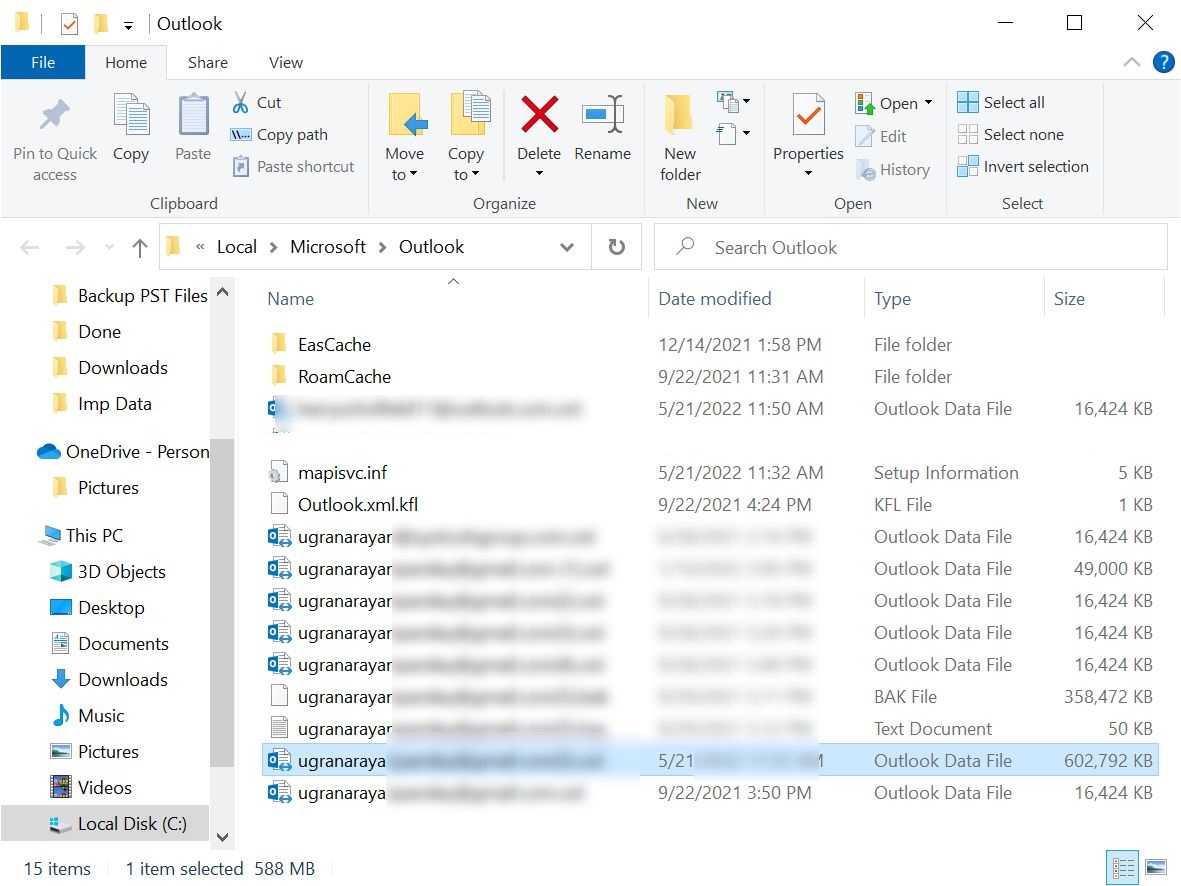
This method allows you to copy and paste any PST files from the saved location to your destination location. After that use the PST file for any references.
Get Solution to Save Outlook Calendar as ICS File Format
How to Save All Emails in A Folder as a PST File Manually?
To save all emails in a specific folder as a PST file in Outlook, follow the below-mentioned steps:
- 1. Open Outlook and Go to the File tab.
- 2. In the Open & Export feature, click on Import/Export option.
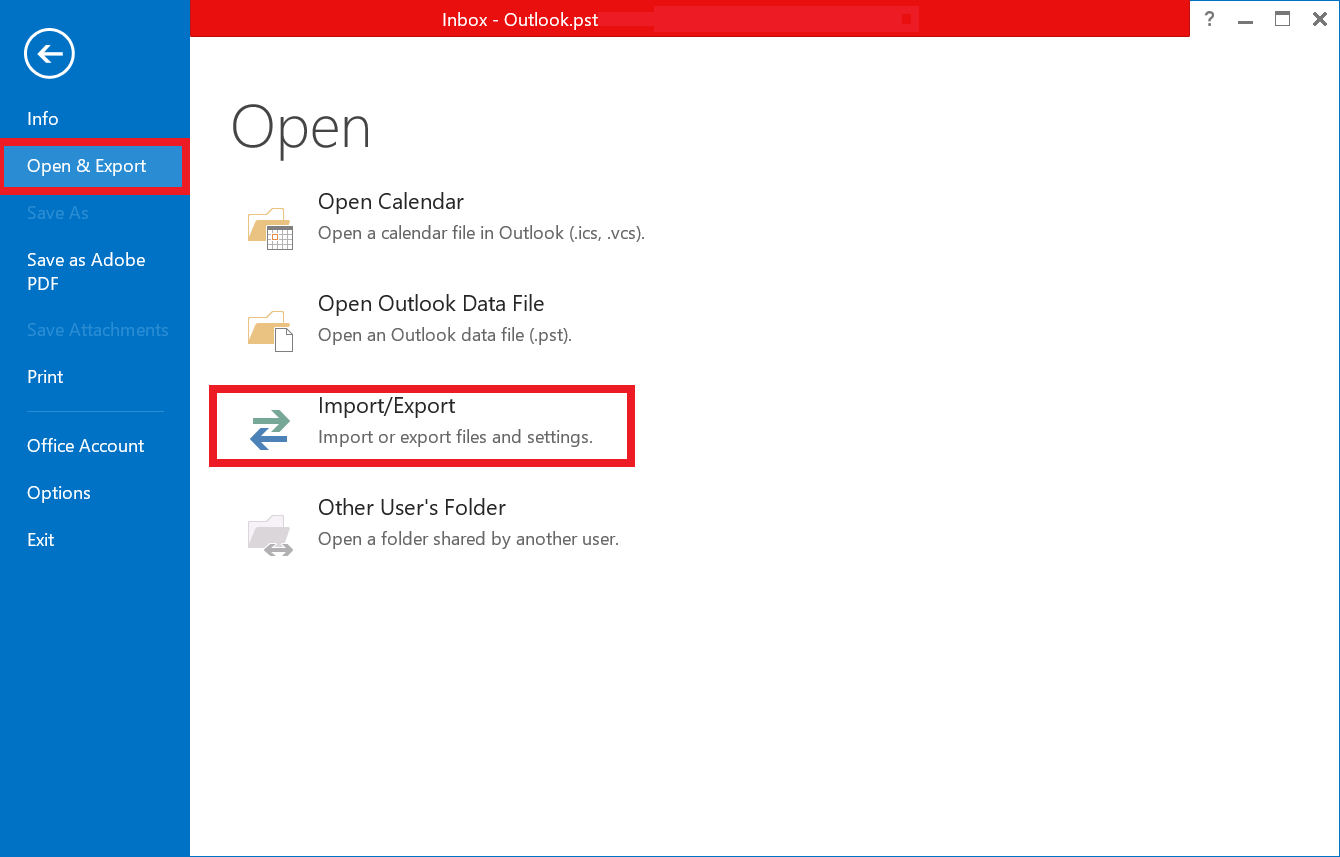
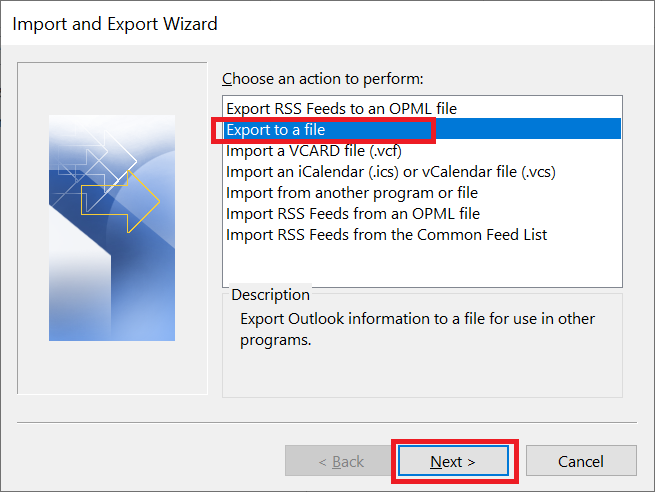
- 3. Next, select Export to a file option.
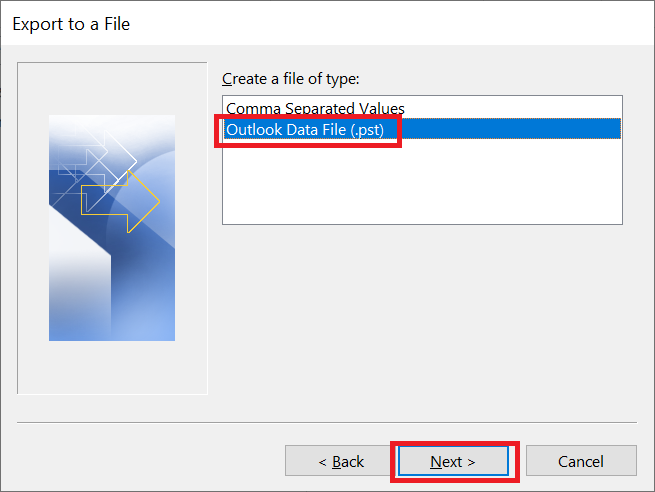
- 4. Next, select Outlook Data File (.pst) option.
- 5. Select All Folders or Required Folder. Click on Next.
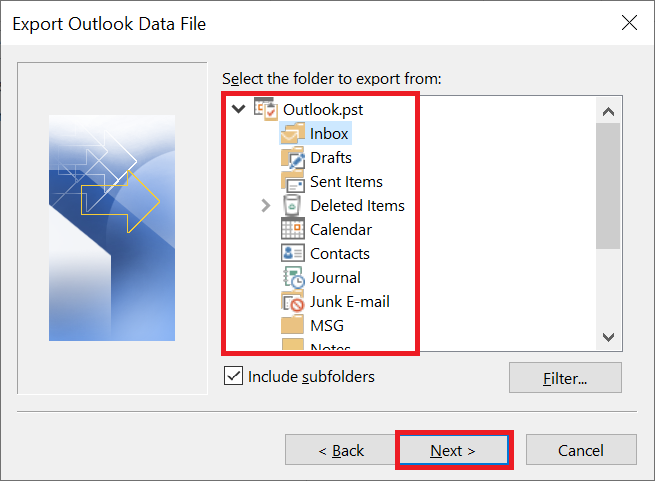
- 6. At the final step, Browse Destination Location and Click on the Finish button.
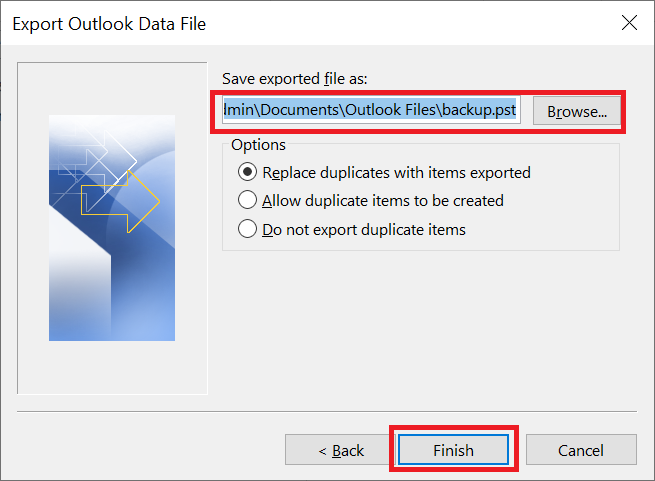
Both the methods are free to save Outlook emails to PST file format. But if you don’t have the Outlook application and only the inaccessible PST file then choose the above-mentioned automated method.
Expert-Suggested Solution When You Don’t Have MS Outlook Installed
Microsoft Outlook PST Converter Tool is useful if you have PST files in your system, but Outlook is not installed on your computer. Outlook emails can be saved in batches to the PST file.
For Windows
For Mac
In addition, it is able to save password-protected, archived, and inaccessible files. It can also extract source emails and their attachments. This tool supports Outlook 2021, 2019, 2016, 2013, 2010, 2007, 2003 and below versions.
Summing Up
In this blog, we explain the complete solution to save Outlook emails to PST file format. With the suggested manual methods, you can easily save emails from Outlook 2021, 2019, 2016, 2013, 2010, and other versions. However, without Outlook, you cannot save inaccessible PST files into healthy PST files unless you use an advanced Outlook PST Recovery Solution.
Also Read: Top 2 Solutions to Transfer Outlook Contacts to vCard Format