How to Save Attachments from Outlook to Folder Automatically?

Summary: You may be using Microsoft Outlook as your email client, and with the help of these services you can transfer important documents or pictures via attachments. It can be convenient to save attachments from Outlook to folder automatically. You may want to save them in My Documents or anywhere you want. So, in this article you will see different methods to download Outlook attachments.
Why to Download Attachments from Outlook?
Every Outlook user faces this problem as they receive various emails on a day to day basis. Below are the points to save attachments from Outlook to folder automatically:
- You don’t have to repeat the same task
- All attachments are saved in one place
- Ensure that you do not miss any important data
- To create a backup without much effort
- To avoid file corruption while extracting numerous files
It is very useful for those who deal with hundreds of emails everyday.
Also Read: How to Fix Outlook PST File Corruption Error?
Steps to Save Attachments from Outlook to Folder Automatically
Microsoft Outlook acts as your information manager to manage your emails, contacts, task assignments, documents or to-do lists. You can communicate by chat or email, and you can interact with public folders or forms. It’s convenient to save attachments automatically in Outlook so you can manually save all attachments to folder. Through this article, We explain you briefly how to do the process, just follow the mention processes.
Process 1: Create and Setup VBA Script
Follow the steps carefully to create and set up the VBA script command:
- First, set up a VBA script that save attachments to a specified folder. Press the Alt + F11 to open the Microsoft Visual Basic Window
- Next, click on Insert >> Module to open new Window
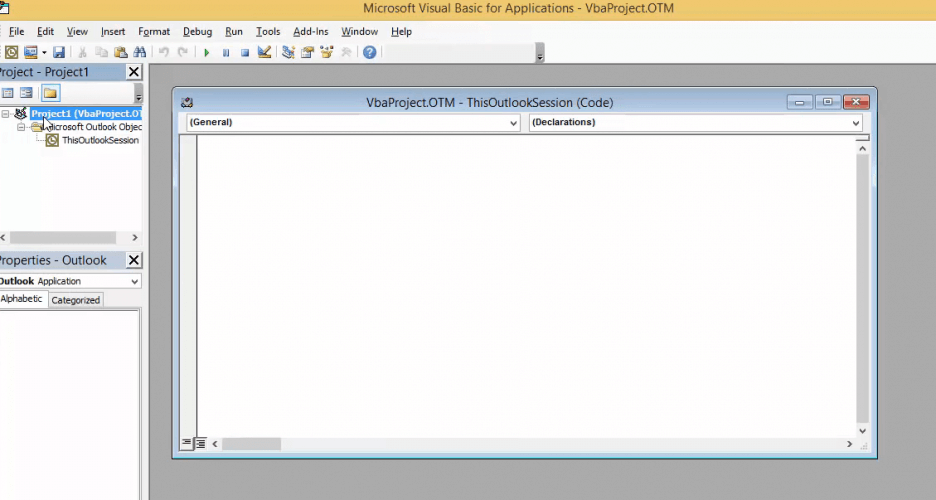
- Next, Copy below mentioned VBA code and Paste in VBA module
Public Sub SaveAttachmentsToDisk(MItem As Outlook.MailItem)
Dim oAttachment As Outlook.Attachment
Dim sSaveFolder As String
sSaveFolder = “C:\Admin\ThisPC\Documents\outlook-attachments”
For Each oAttachment In MItem.Attachments
oAttachment.SaveAsFile sSaveFolder & oAttachment.DisplayName
Next
End Sub
- Next, Save the new script and Close VBA module.
Process 2: Setup Outlook Rule with VBA Script
Follow the steps to setup Outlook rule with the VBA script:
- To set Outlook rules for saving attachment scripts, click the Rules button
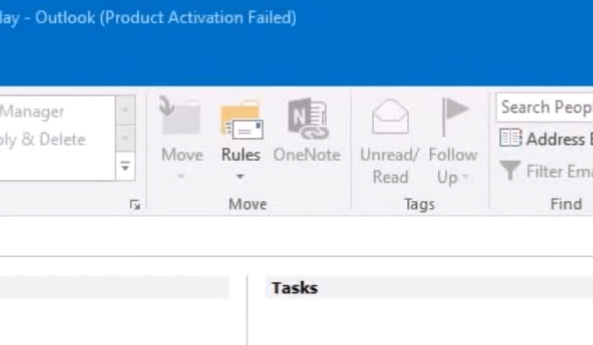
- Next, select Manage Rules & Alerts then click on New Rule
- Choose Apply rule on message I receive or Check messages when they arrive and click on Next
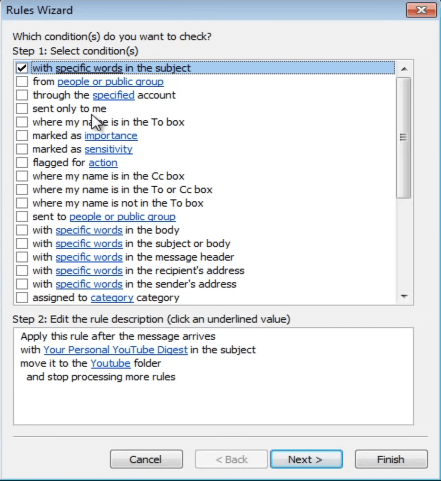
- Next, click on Run a Script option and select the script to open the Select Script Window
- Select Download Script Attachment in the Select Script window and click the OK button. Click on Next
- Enter a title for the rule in the text box of the last Rule Wizard dialog box. Select the Turn on this rule option
- If you prefer, you can select the option to immediately run this rule on messages in the Inbox. Click the Finish button.
After this, Outlook will automatically save the attachment to the folder path included in the script. This way you do not have to manually download attachments. Open the folder path specified in the macro in File Explorer to view the attachment.
Also Read: How to Print Outlook Emails with Attachments to PDF?
Process 3: Save Attachments from Outlook to Folder Automatically Using Power Automate
There is another way to save attachments automatically. It allows you to save email attachments in a folder without opening it.
- Firstly, sign in to Power Automate
- Next, click on Create and select Automated flow
- Configure Trigger when a new email arrives
- Add the action “Save attachment”
- Choose the folder where you want to save files
Note: This method will work online and need a cloud setup. So, it is not suitable for all types of users.
Limitations of Above Manual Methods
While methods like VBA scripts can help you in saving attachments. But, they come with several drawbacks:
- Need of technical knowledge to write scripts and for cloud setup
- You need to enable Macros in order to keep your data safe
- There is no advanced filters like file type, sender, or date range
- It cannot handle duplicate files efficiently
- Not suitable for multiple attachments
Save Attachments from PST File – Automated Solution
You can save all attachments from the Microsoft Outlook PST file in one click. RecoveryTools Outlook PST to PDF Converter Tool helps users to save attachments from PST files without Outlook 2019, 2016, 2013, etc. Easily save attachments from multiple PST files into a separate folder.
This software gives the option to save Outlook PST files’ emails and attachments into a portable format. Easy to carry and use the portable format. You can also save attachments in a separate folder with naming conventions. Free download this tool on Microsoft Windows 11, 10, 8, 7 OS and Windows Server 2016, 2012 R2, 2008.
If you want to download attachments from Outlook automatically, then you can use Professional Outlook Attachment Extractor software. It helps you to extract attachments from PST, OST, & BAK. Also, you can pull attachments from corrupted profiles too.
Main features:
- Extract attachments from multiple Outlook files at the same time
- Save all attachments automatically in a separate folder
- Provides filter options like date, file type, or folder according to you
- Works with all Outlook versions and handles large files easily
- Keeps your data safe and maintain the folder structure
These are the four processes to save attachments from Outlook to folder automatically. The first two processes are for saving attachments from Outlook and the last one for getting attachments from PST files. So choose as per your requirement.
Common Issues & Fixes
Users may face some issues while they save attachments from Outlook to folder automatically. Check the below points to avoid any such errors:
- Check if macros are enabled properly or not
- Use unique name to execute
- Verify the folder path and location
- Ensure correct directory is selected
If you follow the above steps, then it would be easy to get your desired output.
Summing Up
After following the above-mentioned process, you can easily save attachments from Outlook to folder automatically. Basically, first, two processes use to save attachments from Outlook and the last one from PST files. So, it totally depends on you and your requirement which one you follow. If you do not have an Outlook application and have PST files, use the suggested software solutions.